This article will explain how you can update your bank details in the Payment Settings via the PropertyMe Mobile App.
The screens you see will depend on the PropertyMe plan your property manager’s agency uses. We’ll guide you through the right steps.
Update Bank Details For Direct Debit |
Manage PayTo Agreement |
- From the Home screen, tap Manage.
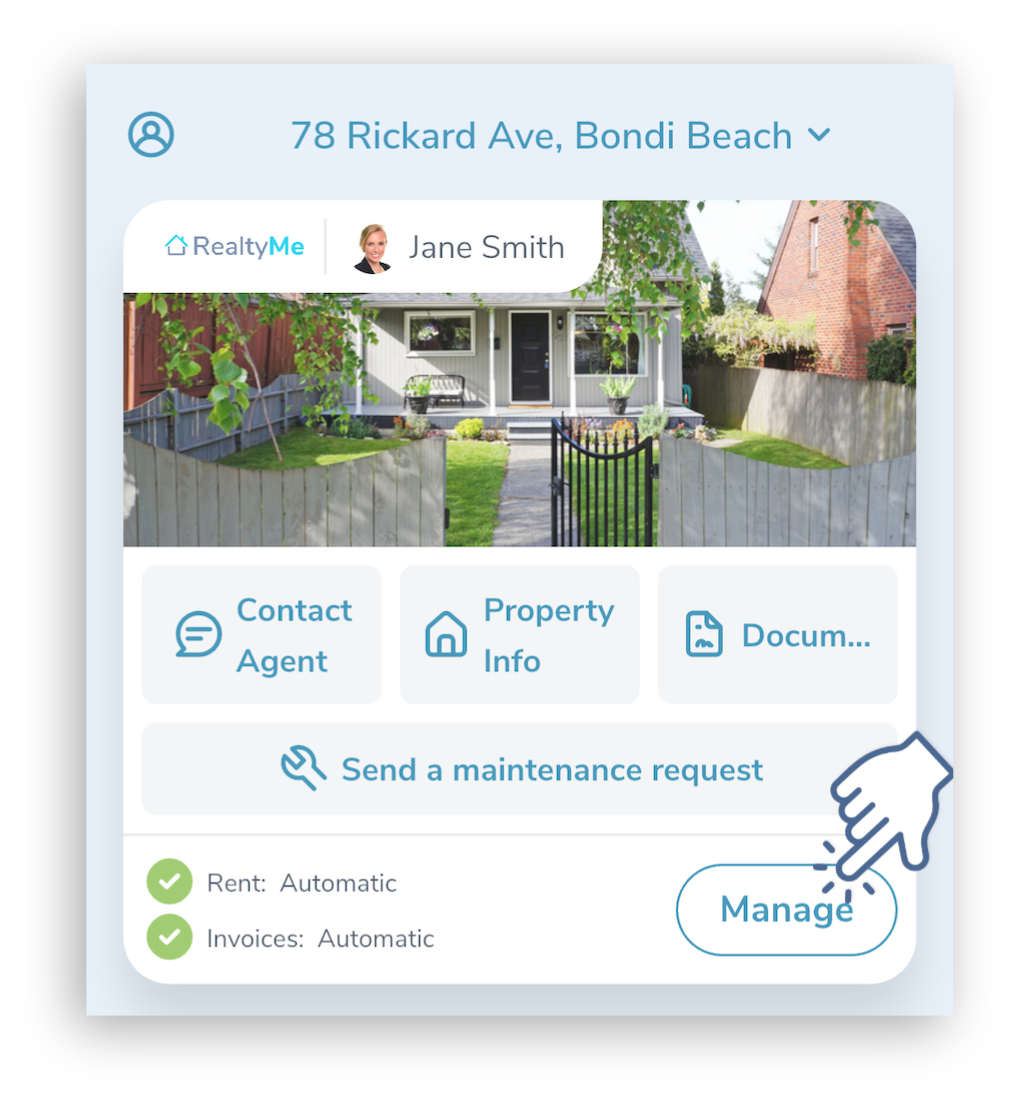
- Scroll down to the Link Bank Account section.
- Tap Update.
-
Enter your new bank details.
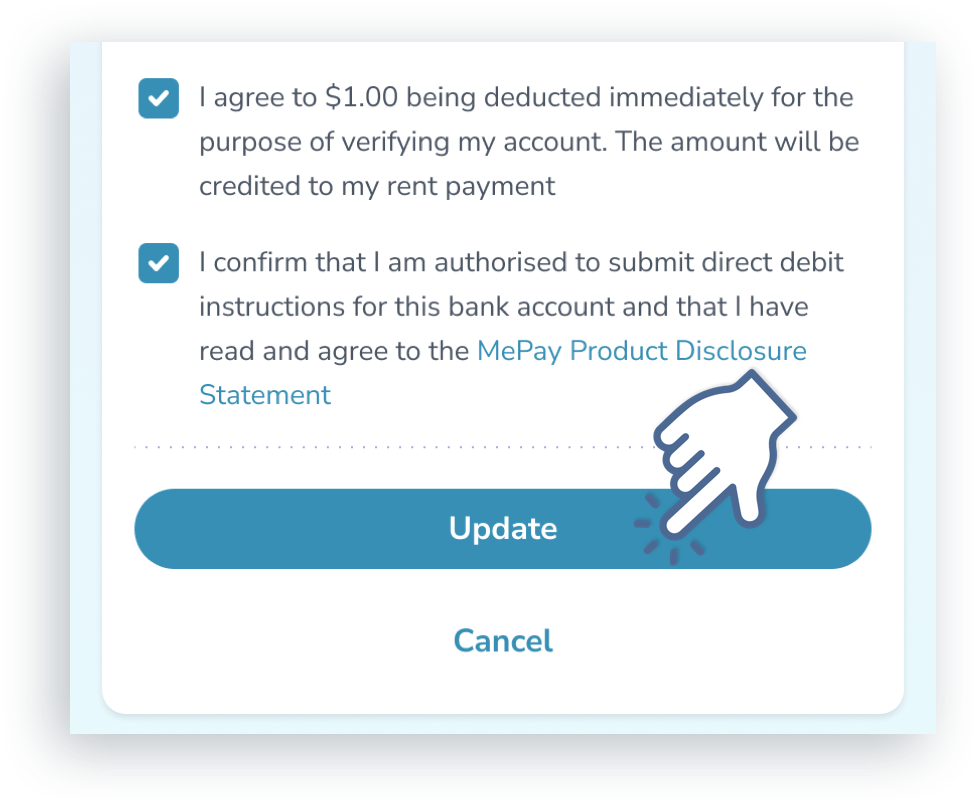
- Tap the checkboxes to agree to and confirm:
- $1.00 being deducted from your account for verification purposes.
- You are authorised to submit direct debit instructions for this bank account
- You agree to the MePay Product Disclosure Statement.
- Tap Update to continue.
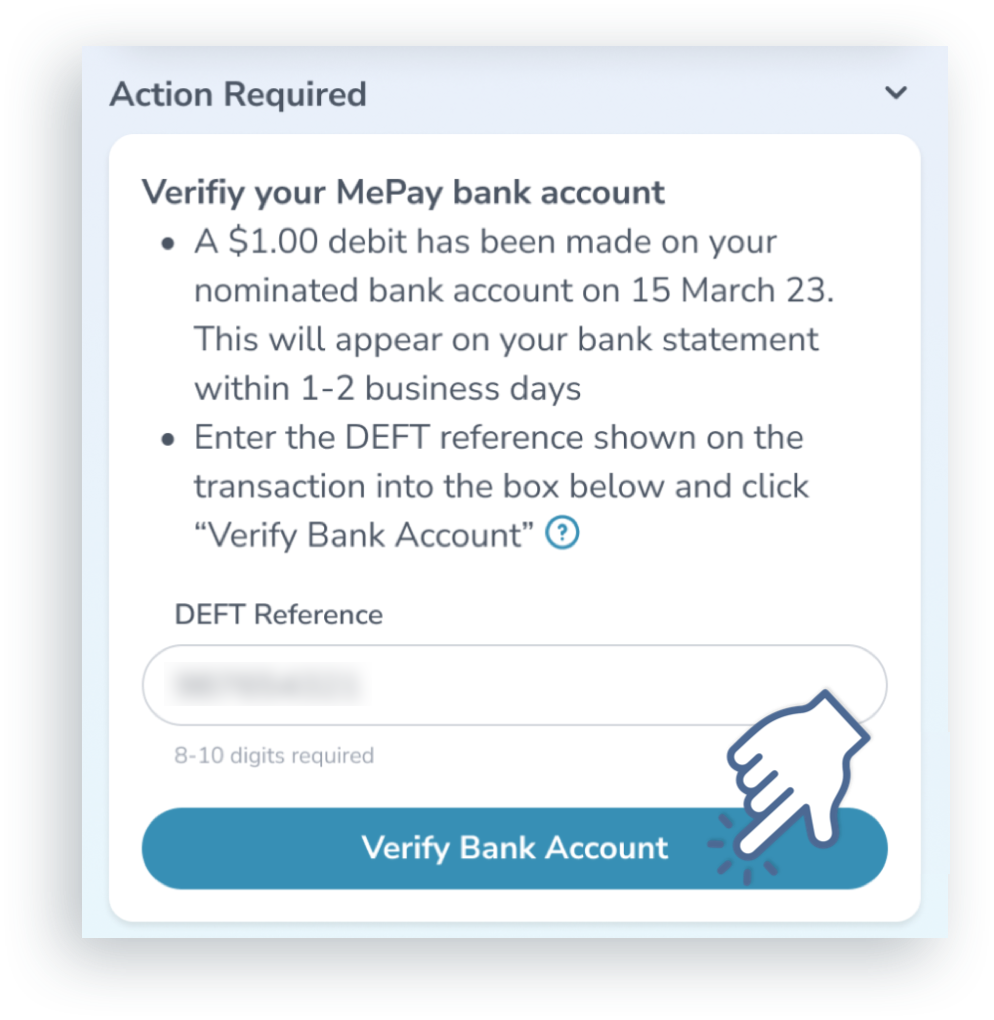
- Check your bank account for the $1 direct debit and make a note of the number in the reference.
- Return to the Home screen of the PropertyMe App, and enter the number in the "Verify your MePay bank account" card.
- Tap Verify Bank Account.
|
- Cancel the agreement via the PropertyMe mobile app, your internet banking or your mobile banking app.
- Create a new PayTo agreement with the updated details.
|